Add Users to Your System
Give employees, managers, or family members access to view cameras and manage your Deep Sentinel security system in the Seattle area.
Understanding User Permissions
Before adding users, understand the permission levels available:
Recommendation: For Seattle businesses, we recommend limiting Admin access to owners/managers and using Viewer access for general employees.
Navigate to User Profiles
To manage users on your account:
- Open the Deep Sentinel app
- Tap Settings (bottom right)
- Tap Account
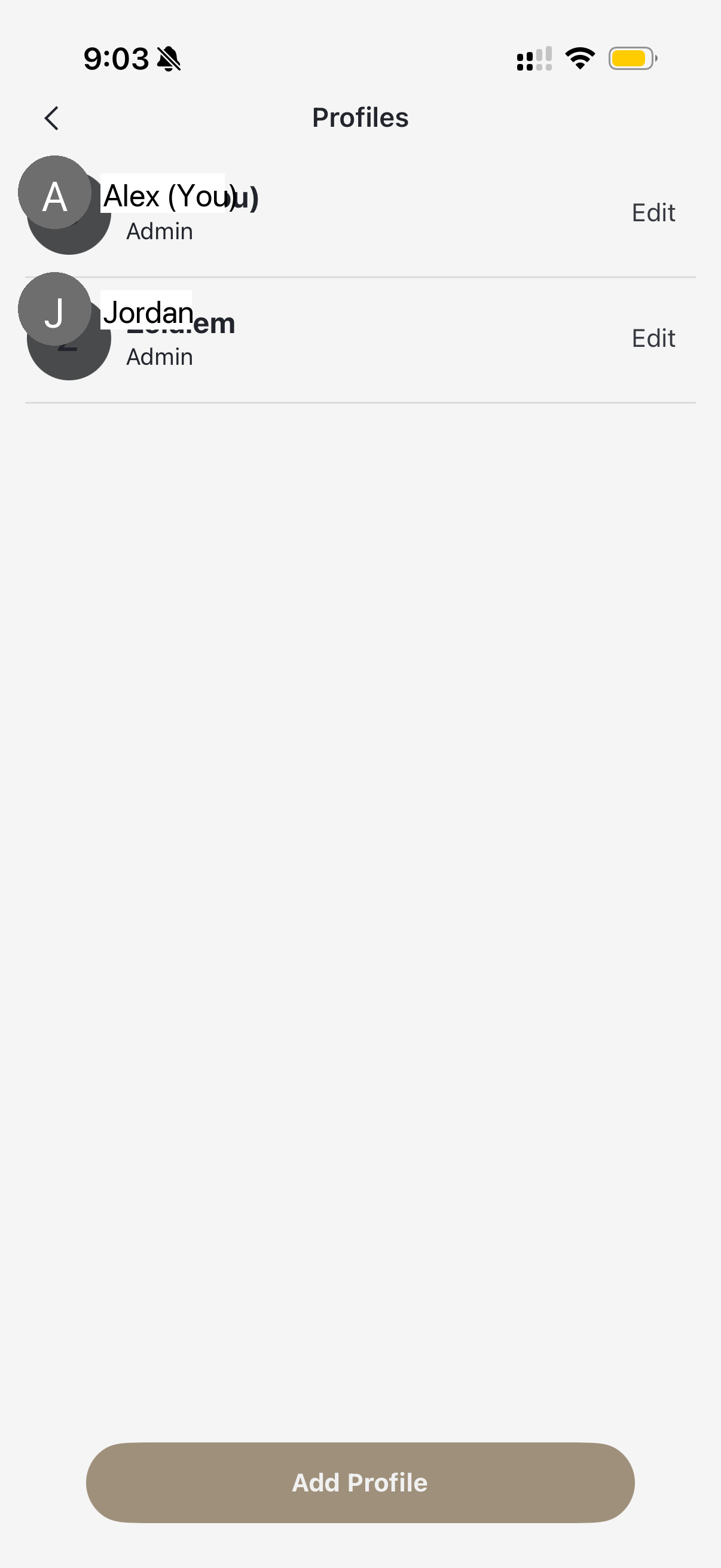
- Tap User Profiles
Add a New User
To invite a new user to your account:
- Tap the Add Profile button at the bottom of the screen
- Enter the new user's email address
- Select their permission level (Admin or Viewer)
- Tap Send Invitation
The new user will receive an email invitation to download the Deep Sentinel app and create their account. Once they accept, they'll have access to your system.
Note: Make sure to share your Safe Word with new users so they can verify their identity if guards question them on camera.
Edit or Remove Users
To modify an existing user's access:
- Find the user in the Profiles list
- Tap Edit next to their name
- Change their permission level or remove them entirely
- Tap Save to confirm changes
When an employee leaves: Always remove their user profile promptly to maintain security at your Seattle property. They will immediately lose access to camera feeds and system controls.