Navigate Event History
Review past security events, guard interventions, and camera activity at your Seattle property. Learn how to filter and search through your event timeline.
Access the History Tab
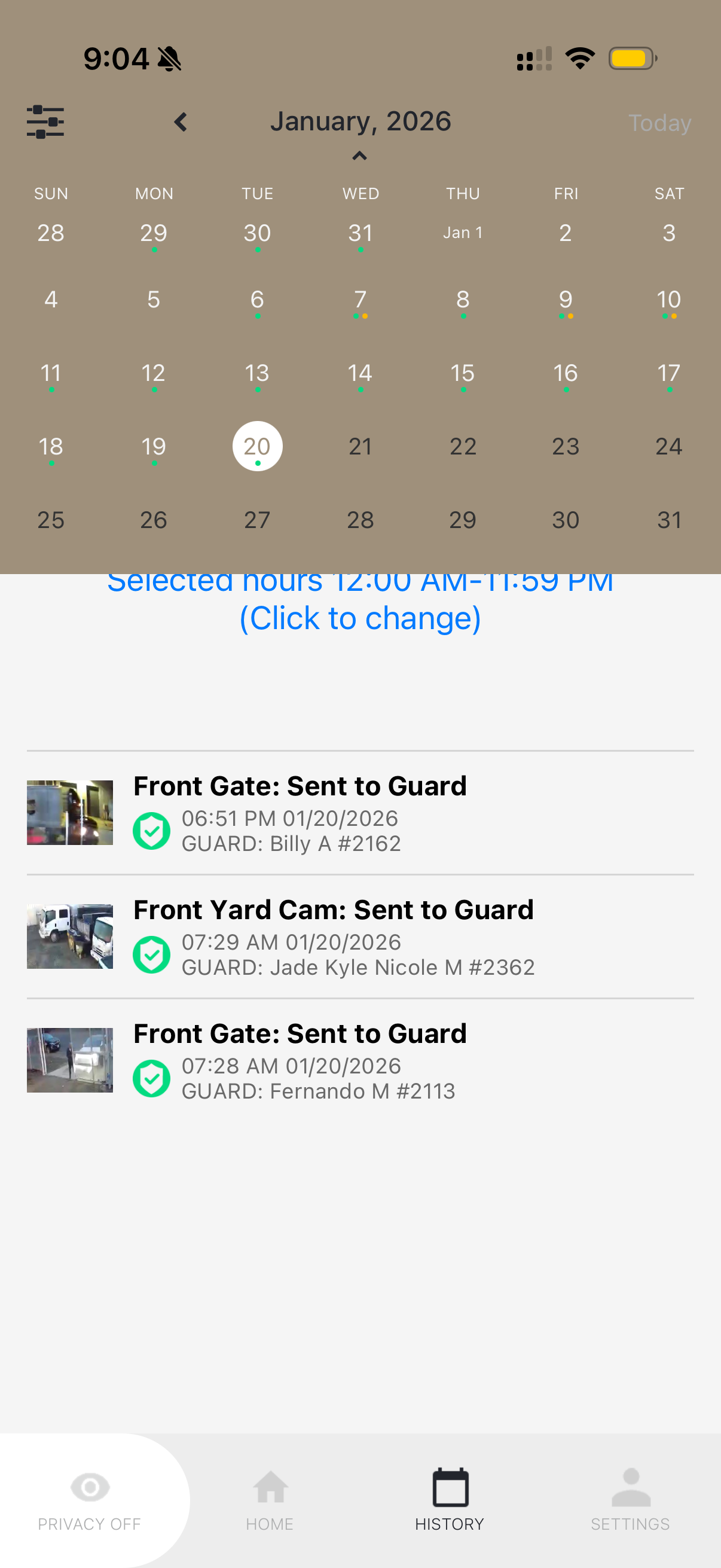
The History tab shows all security events captured by your Deep Sentinel system. To access it:
- Open the Deep Sentinel app
- Tap History in the bottom navigation bar
You'll see a calendar at the top and a list of recent events below. Days with events are highlighted on the calendar.
Understanding Event Types
Your event history includes several types of events:
Sent to Guard
Motion triggered AI detection and was reviewed by a live guard. Most common event type.
Guard Intervened
A guard actively engaged with the situation via two-way audio to warn or question someone.
Emergency Called
Guards dispatched emergency services (police, fire) to your Seattle property.
LEO on Property
Law Enforcement Officer arrived at or was observed on your property.
Package Delivered
AI detected a package delivery. Useful for tracking when deliveries arrive.
Non-Verified
Motion was detected but guards couldn't verify or the person provided correct Safe Word.
Filter Events
To find specific events, use the filter options:
- Tap the filter icon at the top of the History screen
- Select event types you want to see (e.g., only "Guard Intervened")
- Select specific cameras to filter by location
- Tap outside the filter panel to apply
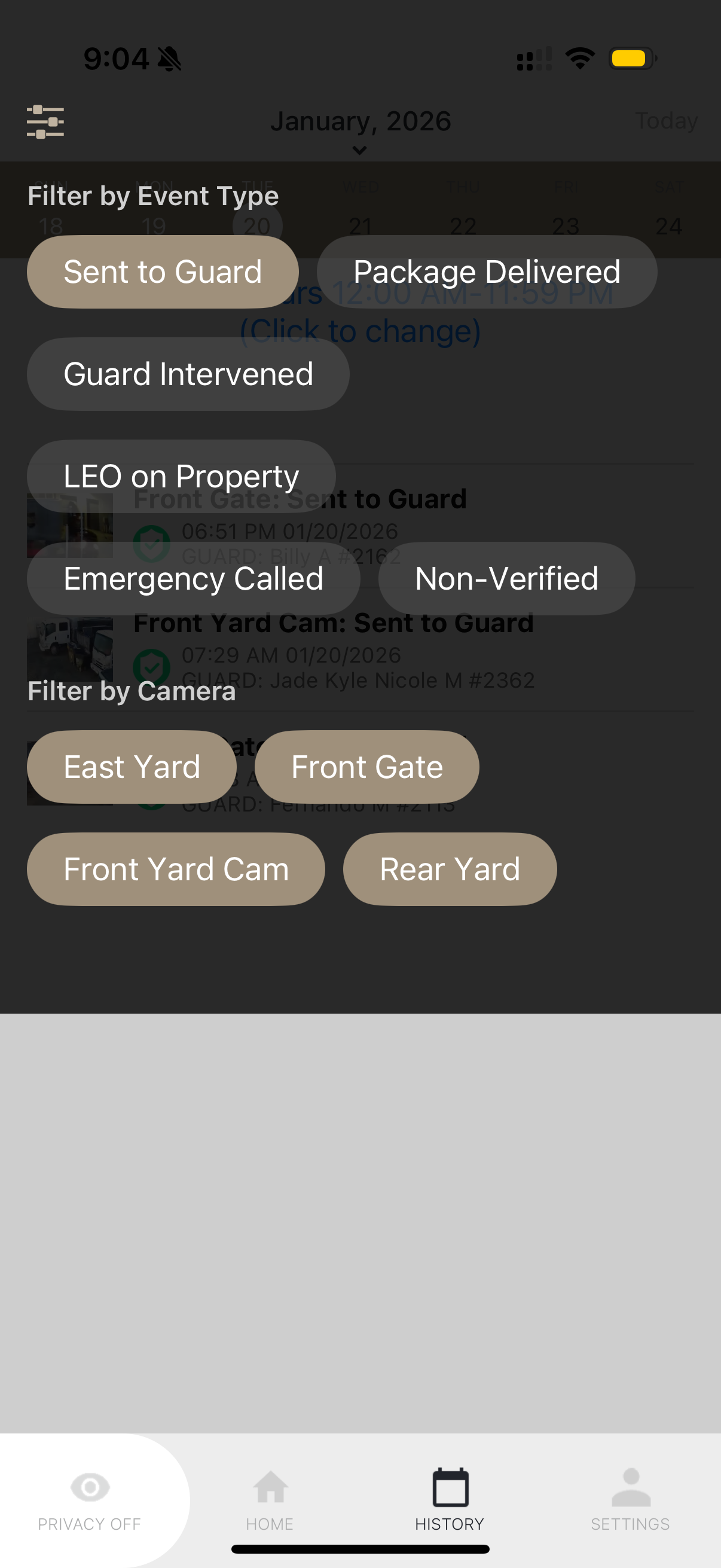
Tip: Filter by "Guard Intervened" to review all instances where guards actively engaged on your Seattle property.
View Event Details
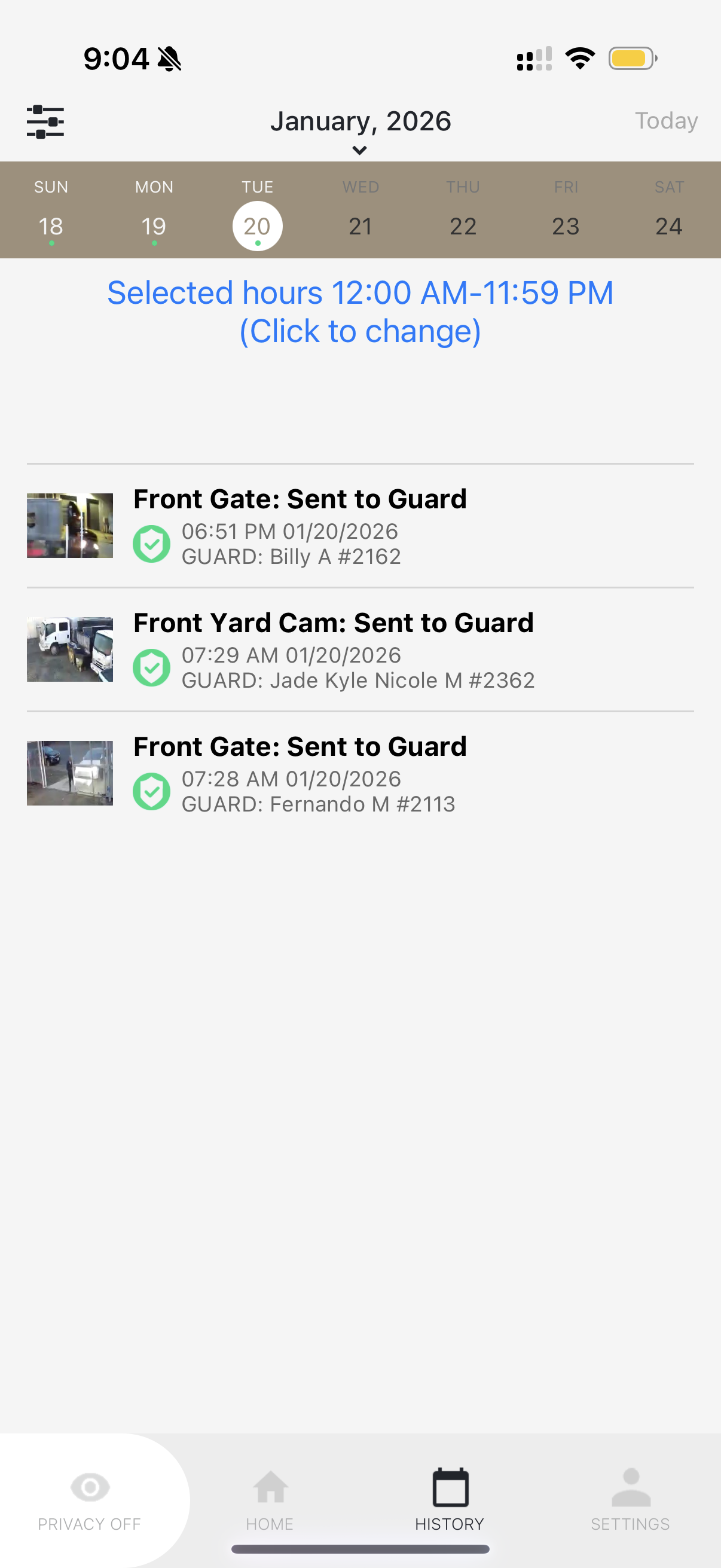
Each event in the list shows:
- Thumbnail — Preview image from the camera
- Camera name — Which camera captured the event
- Event type — What kind of event occurred
- Timestamp — Date and time of the event
- Guard name — Which guard reviewed the event (e.g., "GUARD: Billy A #2162")
Tap any event to view the full video clip and additional details. You can download clips or share them if needed for insurance or police reports.
Navigate by Date
Use the calendar to jump to specific dates:
- Tap any highlighted date on the calendar to see events from that day
- Use the arrows or swipe to navigate between months
- Tap "Today" to return to the current date
You can also tap "Selected hours" below the calendar to filter events by time of day — useful for reviewing overnight activity or specific business hours.
Pro tip: Review your event history weekly to understand activity patterns at your Seattle property and fine-tune your camera sensitivity settings.